
A backup job can report success without proving that your team can recover the right file when it matters. To find out whether a backup is usable, perform a small restore test: choose a suitable sample, restore it somewhere separate from the original, and have an authorized person check the result. With the destination and overwrite settings confirmed first, this is a practical way to test business backups without disrupting everyday work.
This file-level check is not a replacement for a broader recovery exercise. It is a low-risk way to verify one part of your process and catch issues before an urgent recovery is needed.
What a restore test can tell you
A successful backup job indicates that a backup process ran. A restore test checks whether you can retrieve the data and use it as expected. The difference matters: a file may be missing, out of date, incomplete, or difficult for staff to access even when a job report looks normal.
Recovery testing guidance from AWS Well-Architected emphasizes periodically recovering data to verify backup integrity and the recovery process. For a business, that means checking more than whether a file appears in a destination folder. You also need to confirm that it is the right version, opens correctly, and can be accessed by the appropriate person.
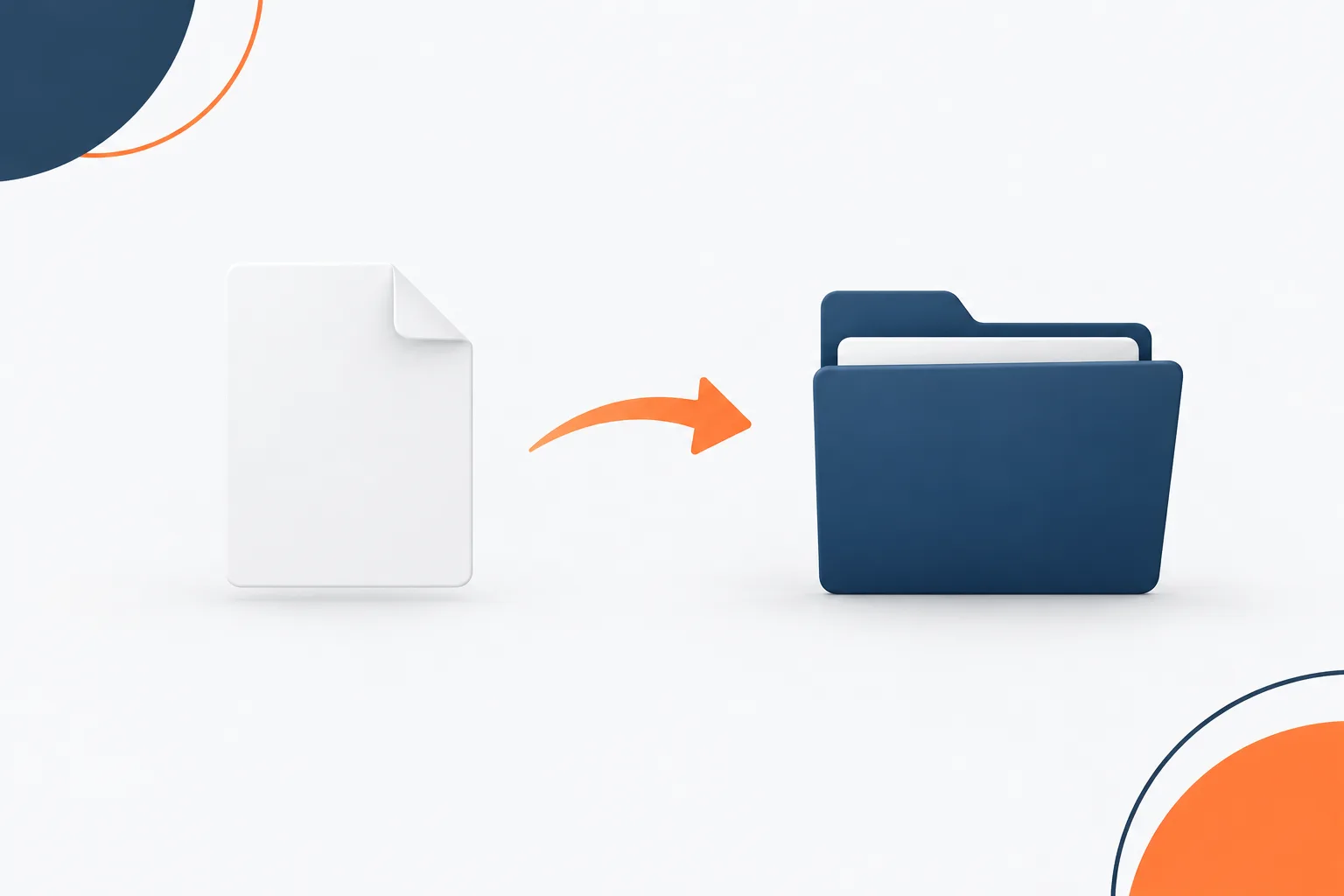
Before you start: make the test low risk
- Choose a suitable sample. Use a noncritical file that represents the kind of information your business needs to recover. Avoid using sensitive personal information unless the test is approved and the destination is appropriate.
- Get the right approval. Confirm who is authorized to select and restore the file. For regulated or confidential records, involve the relevant IT or compliance lead and follow your organization’s handling requirements.
- Pick a separate destination. Use a clearly named test folder or another approved device. Do not restore over the live file or into a shared production folder where someone could mistake the test copy for the current version.
- Check the restore settings. Confirm the source, selected version, destination, and overwrite options before you begin. If the tool offers a choice to replace existing files, make sure that setting cannot overwrite the original.
- Choose a quiet, suitable time. A single-file test may have little effect on routine work, but coordinate with the people responsible for the system. Avoid testing during a sensitive workflow or when a restore could use resources needed by employees.
How to perform a file backup restore test
- Select the file and backup point. Choose a sample that is useful for the test, then identify the backup version you intend to recover. Note its original location and the date or point in time it represents.
- Restore to an alternate location. Direct the recovery tool to a separate test folder or approved device. A restore to an alternate location keeps the original in place while letting you inspect the recovered copy. Guidance from Google Cloud’s recovery testing framework also treats recovery testing as a way to validate that data and processes can be recovered.
- Verify the recovered copy. Have an authorized user check that the file opens and that its contents match what is expected. Confirm that the recovered version is current enough for the business need, the folder structure makes sense, and the correct people have the required access. If the file depends on an application or related data, check whether it works in that context too.
- Compare carefully. If you have a trusted original, compare the recovered copy without changing either file. A file that opens is a positive sign, but it does not by itself confirm that the version, contents, or permissions are correct.
- Remove the test copy when finished. Follow your organization’s retention and handling practices. Remove temporary copies from the test location when they are no longer needed, especially if they contain sensitive information.
- Record the outcome and follow up. Keep a brief record of what was tested, which backup point was used, where the copy was restored, who verified it, what worked, and any issue that needs attention.
What to record after the test
A useful record makes the test repeatable and helps your team spot patterns. Include the system or data type tested, the selected backup point, the alternate destination, the verification result, any access or application issues, and the person responsible for follow-up. Note whether the restore took longer than the business expected, without treating one file test as proof that every system can recover within that time.
Relate findings to the recovery targets your business has set. If you are reviewing those targets, see how recovery time and recovery point targets guide planning. A file restore can help you assess one piece of readiness, but it does not establish that a full system or service can meet its targets.
How often should you test?
Set a recurring schedule that reflects how important the data is, how often it changes, and what could happen if recovery fails. Revisit the schedule when systems, applications, data locations, or business processes change. A test should be frequent enough to give the people responsible for recovery confidence in the process, while remaining practical for the business.
There is no single schedule that fits every organization. Your IT lead or service provider can help choose what to test and how to document it. Zevonix supports businesses in St. Augustine and surrounding areas with backup and recovery, business continuity planning, and IT support.
A file restore test is not a full disaster recovery test
A file-level test checks recovery of an individual item. It can confirm that a selected file can be retrieved and inspected, but it does not prove that an entire application, server, network, or business service can be brought back into operation.
A broader disaster recovery exercise involves more planning and validation. It may assess whether systems and dependencies can be restored, whether staff know their roles, and whether the recovered service supports business operations. The CISA #StopRansomware Guide includes backup and recovery planning as part of resilience against disruptive incidents. Treat a file restore test as one useful check within a larger recovery approach, not as a substitute for it.
Frequently asked questions
Can I restore a file to a test folder or another device?
Yes, if the destination is approved for the data and your recovery tool supports it. Confirm the destination and overwrite options before starting, and keep the test copy separate from live files.
What should I check after restoring a file?
Check that it opens, contains the expected information, represents an acceptable version, and has the right folder location and access permissions. Ask an authorized user to verify it when the file supports a business process.
How do I know whether a backup is complete and usable?
A restore test provides practical evidence for the file or data set you tested. A successful job report alone does not establish that every file or system is recoverable. Test representative data and track any gaps or errors.
What should a business record after a restore test?
Record what was restored, which backup point was used, the destination, who verified the result, whether it met expectations, and any follow-up work. Keep the record in an approved location.
Make recovery confidence part of routine operations
Testing a backup does not need to mean disrupting daily work. Restore a suitable sample to a separate location, verify it with the right person, and document what you learn. If your business needs help reviewing backup and continuity practices, contact Zevonix to discuss IT support for your St. Augustine area organization.